With our migration from Exchange on premise to Microsoft 365 email you will need to do the following on your computer.
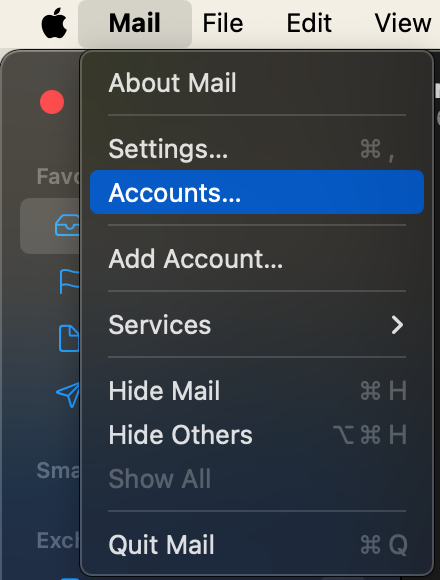
Open Mac Mail on your computer and navigate to “Accounts”
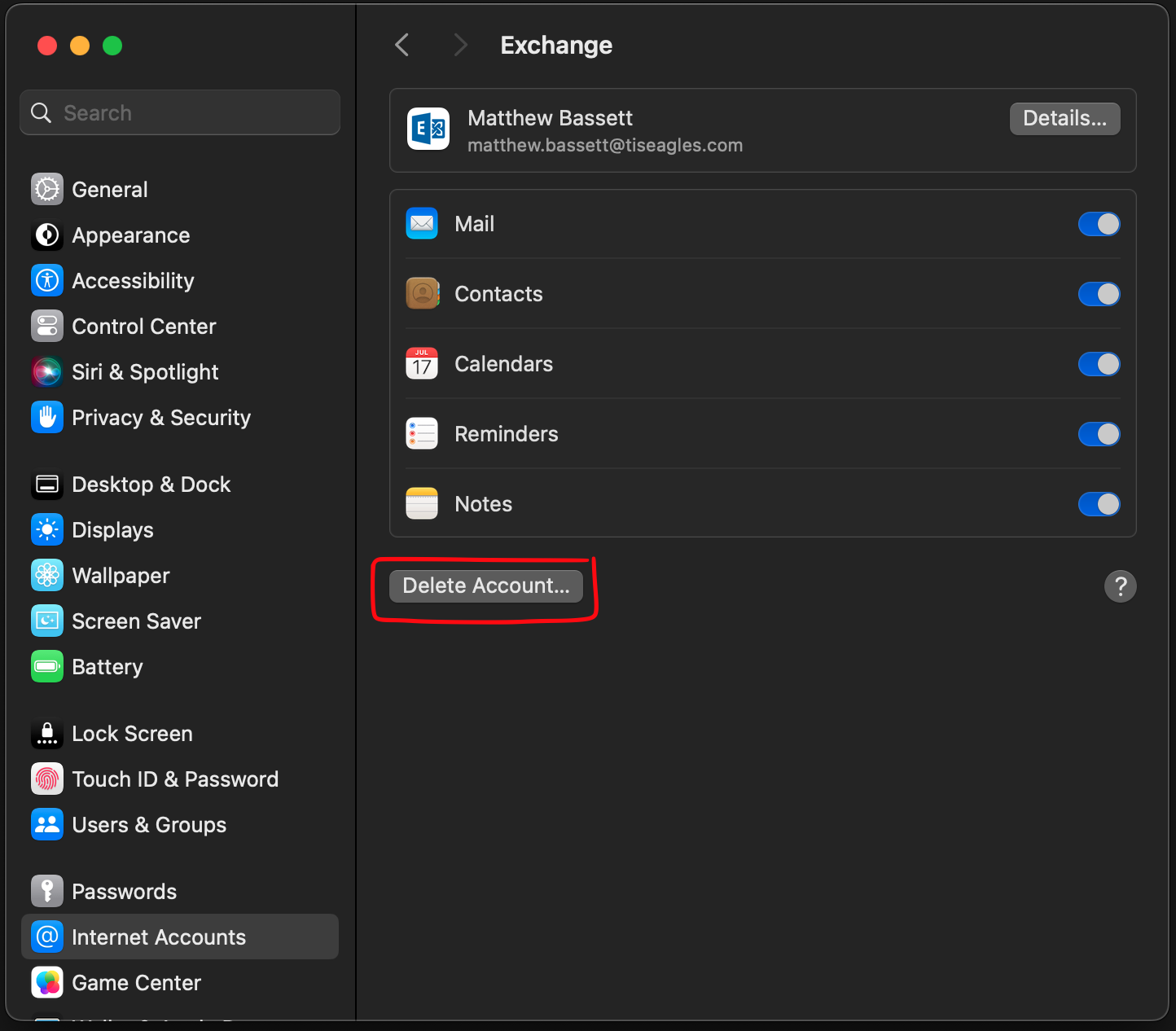
Find your email account in the list and select it, then choose “Delete Account” from the bottom of the page:
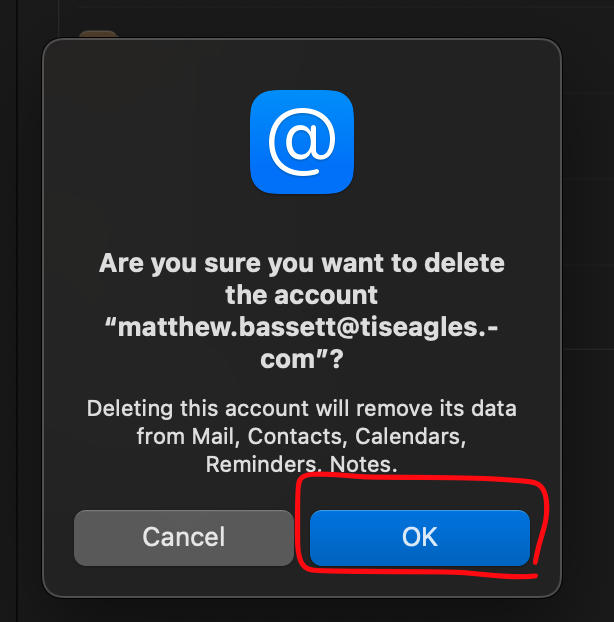
confirm deletion:
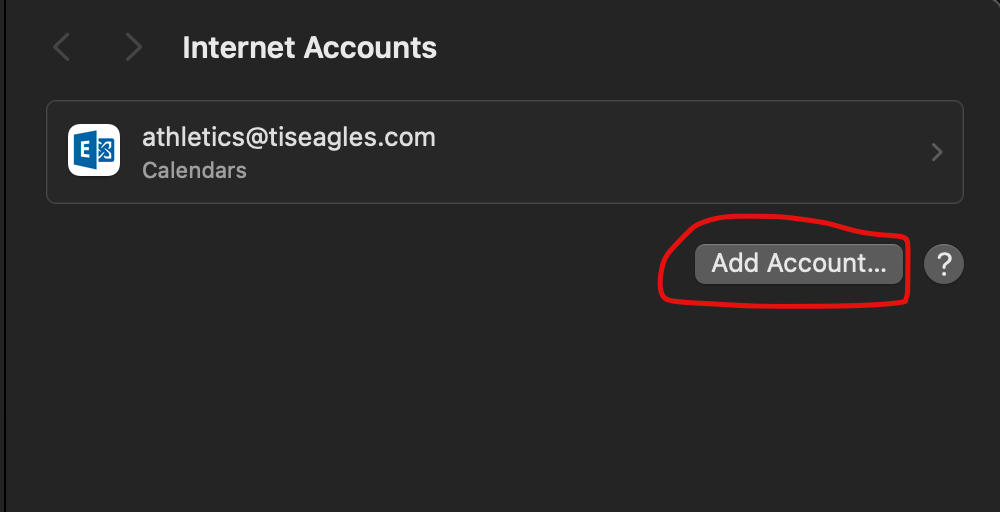
Select the “Add Account” button:
Choose Microsoft Exchange:

Ensure that your name is correct, and then enter your email address:
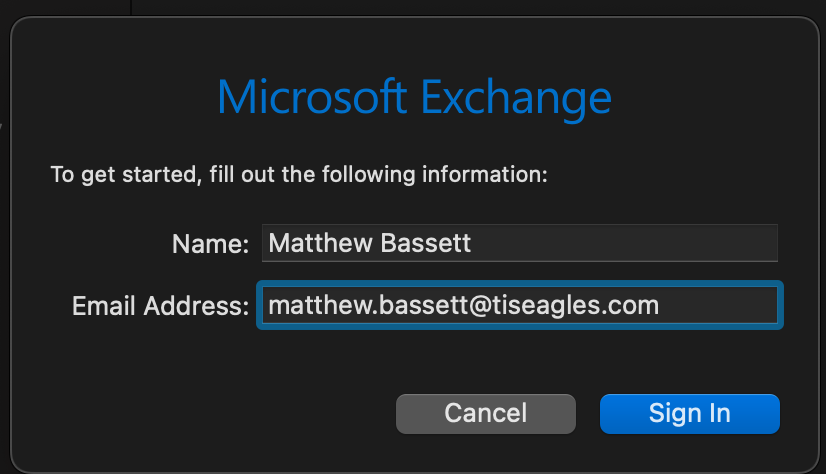
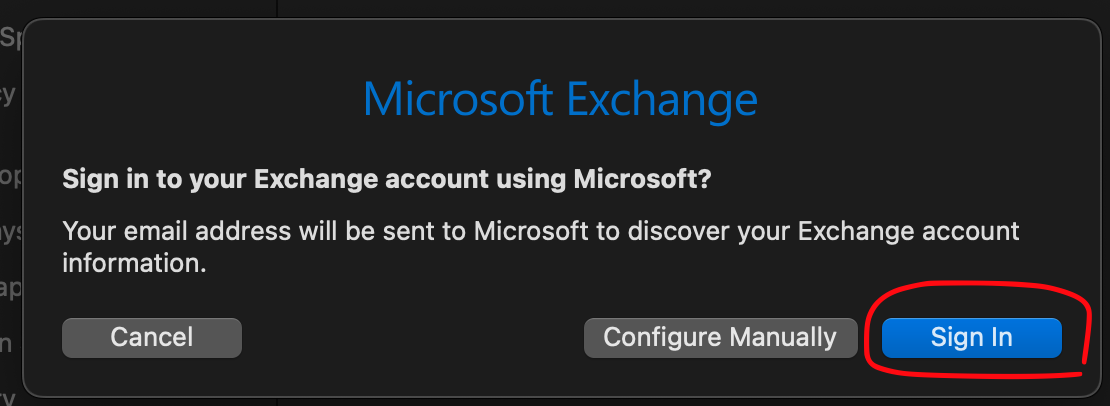
Click “Sign In” then click “Sign In” again:
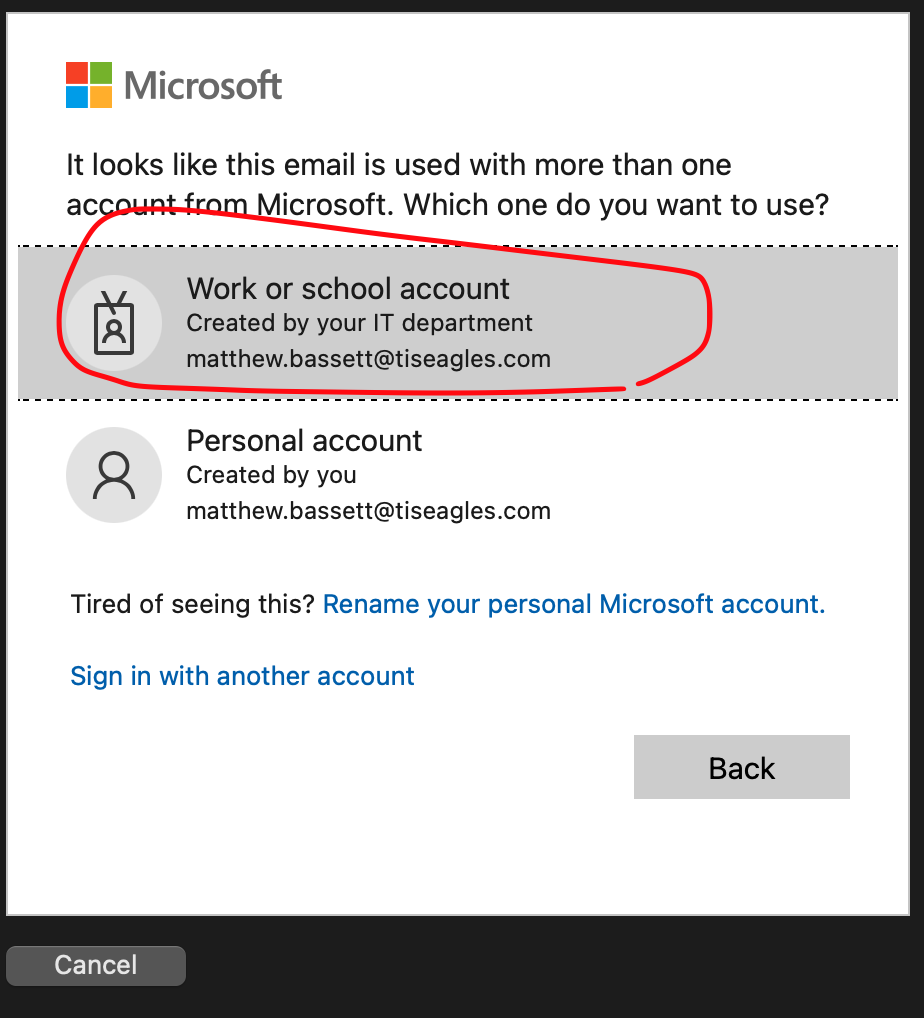
If prompted Choose “Work or school account”
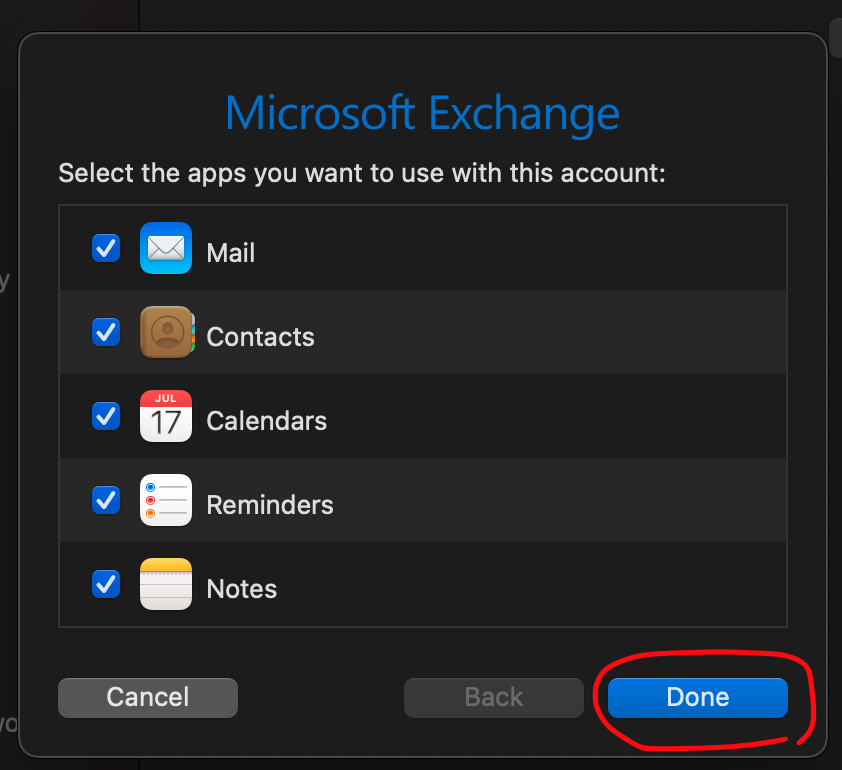
Click Done:
Your email should begin downloading normally again.