**DO NOT JUST CLICK THE CALENDAR LINKS OR COPY INTO A BROWSER**
- IF you click the calendar links directly instead of adding them as a subscription then it will just add the events to your calendar, and you will not receive updates!
How to add the TIS Athletics Calendar
- Open Calendar.
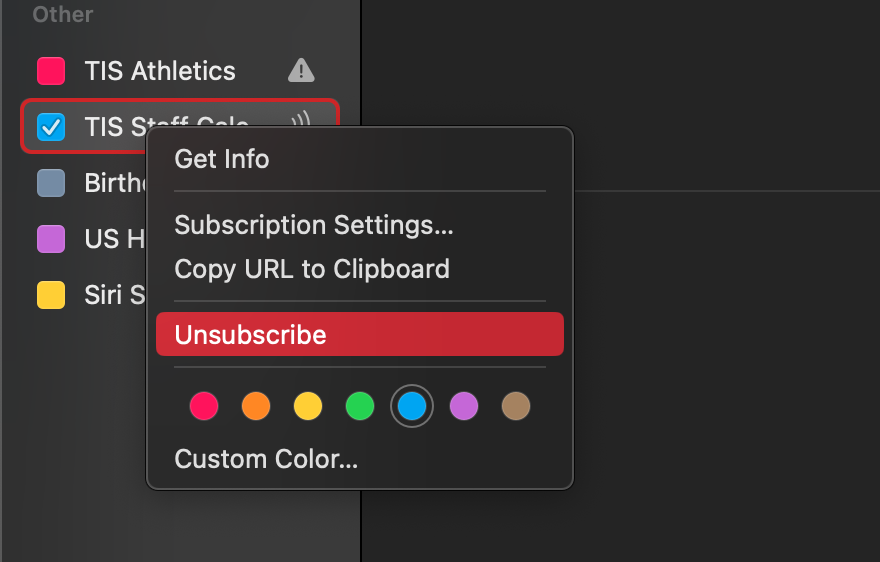
If you have a previous subscription to the Athletic calendar remove it:
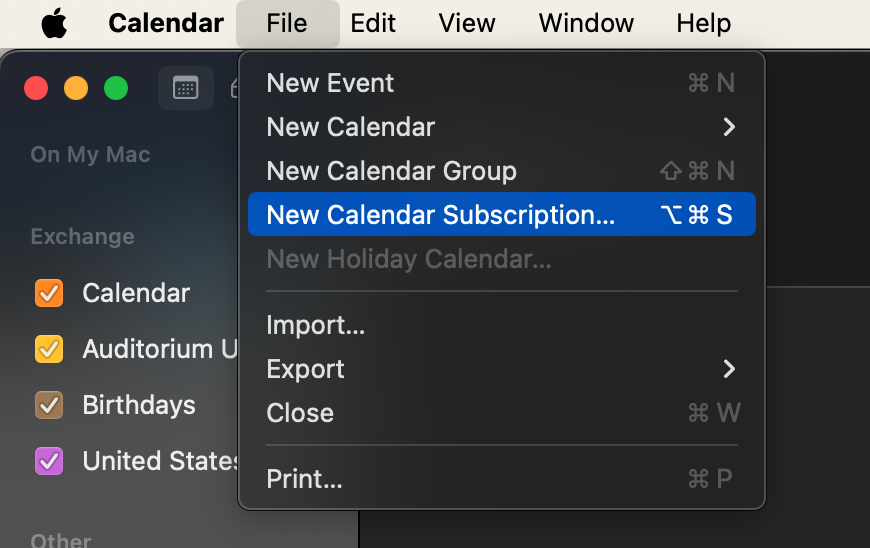
Click on “File” –> “New Calendar Subscription”:
- Copy and paste this link(Do not click it directly!): https://outlook.office365.com/owa/calendar/bad91903039b49c4a3105ee958de51f3@tiseagles.com/877dcd09603449018adfed79e8b7069a15531620934535440308/calendar.ics
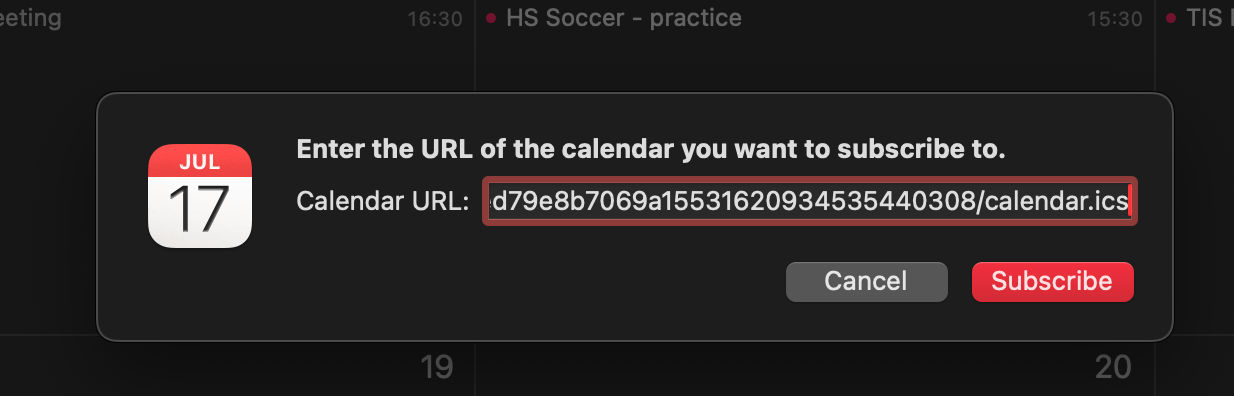
- Click “Subscribe”.
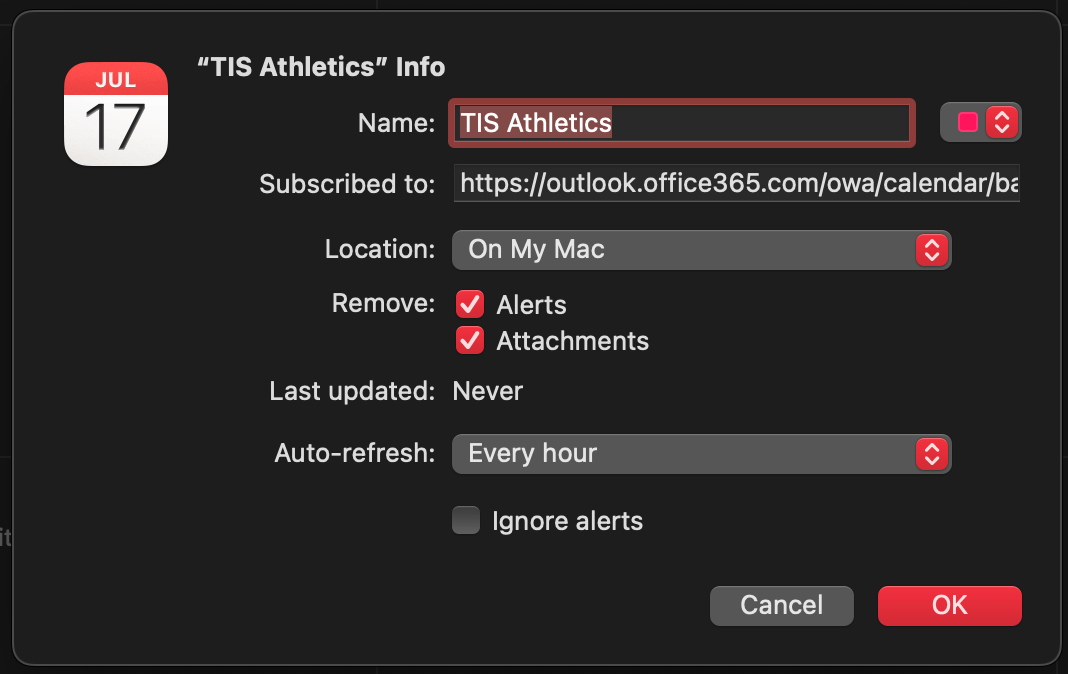
- Choose the name of the calendar and whichever color you would like to use for the calendar, also be sure to choose the Auto Refresh
- Auto-Refresh is probably sufficient at 1 hour, if you would like the calendar to update more frequently you can choose a shorter time:
See this tutorial to add the Staff Calendar