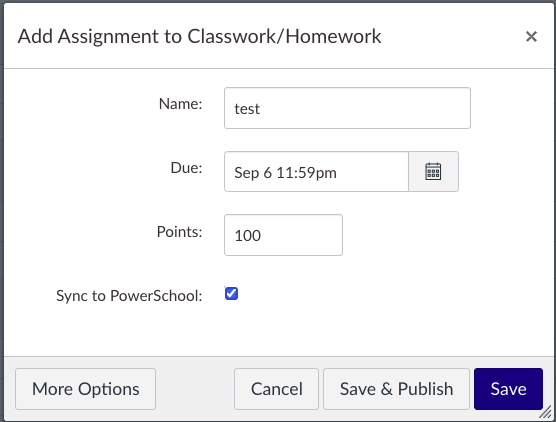
To Set your grades up to sync from Canvas to PowerSchool do the following
Setup the categories you want to use in PowerTeacher Pro
After the categories have been created then log into canvas and navigate to that course
Choose Assignments in the left pane:
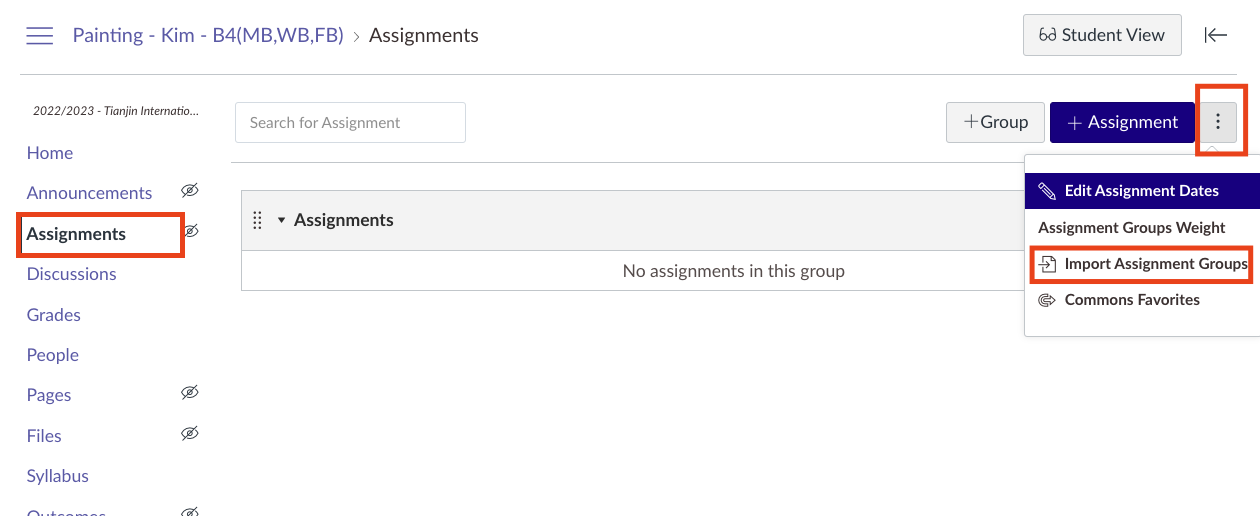
After that choose “Import Assignment Group” from the 3 dot menu in the top right of the assignments page
This will trigger an import from PowerSchool of the grade categories you setup earlier. Assignments will only sync successfully to PowerSchool if you put the assignment into one of the categories that sync’s from PowerSchool. If you change your grade categories in PowerSchool you will have to re-sync them from here again. You will see the schedule page which you can click on to view the status
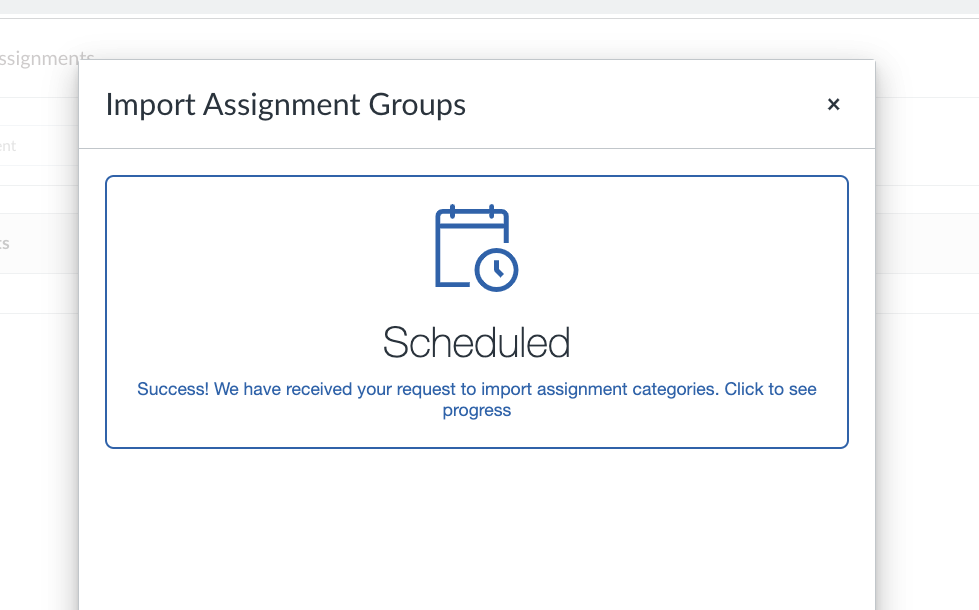
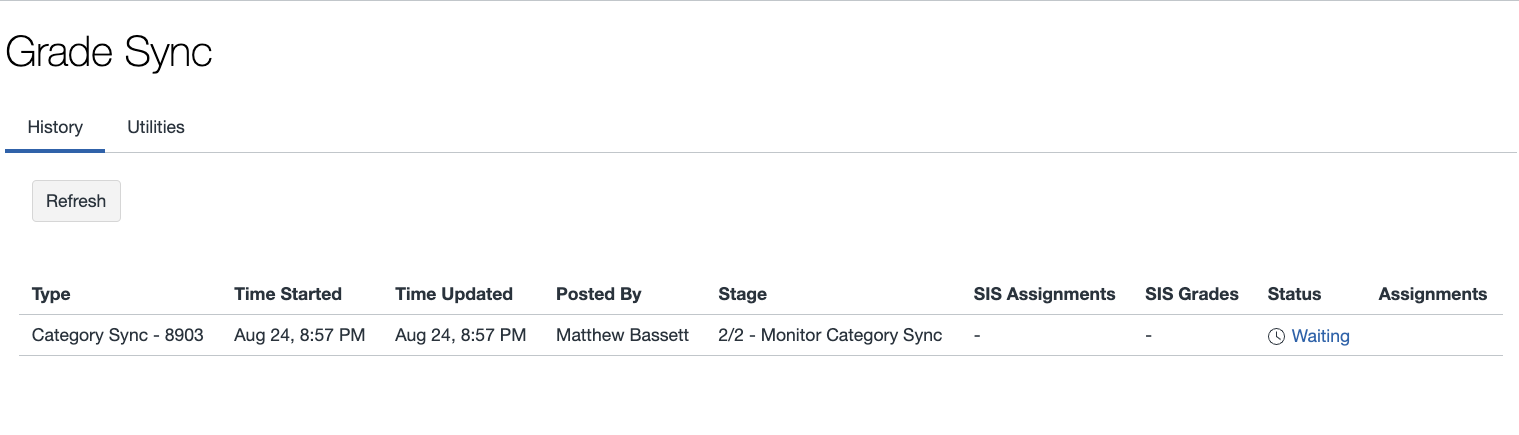
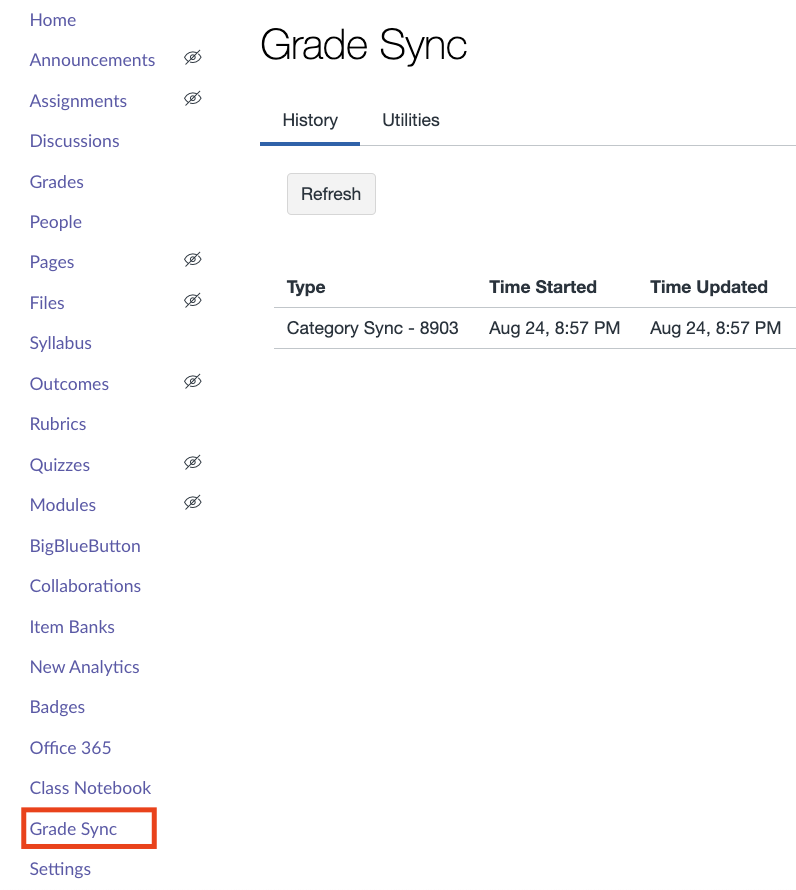
You will need to wait until this task says successful, then you can move on to enabling nightly sync for grades. Choose “Grade Sync” on the left hand side of the page:
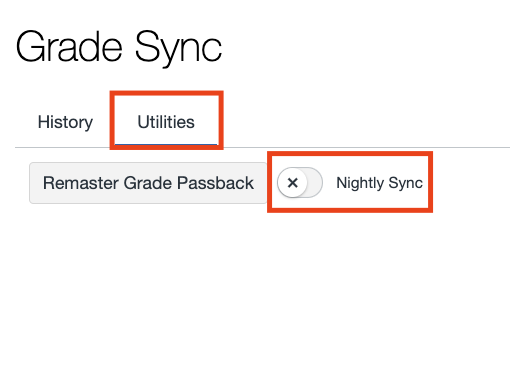
Choose Utilities and flip the switch on for nightly sync:
When you create new assignments be sure to check the box that says “Sync to PowerSchool”