LanSchool is our computer monitoring software that allows teachers to see what is happening on a students screen while they are in their class.
1. Open the Teacher application (You can find it in Applications in the LanSchool folder)
2. Choose Administer –> One to One –> Load Dynamic Class list:
4. Choose the class that you currently want to administer and then click next
5. Your students should now show up. If a student does not show up send them to IT to get the problem resolved. It is not acceptable for a student not to be showing up in LanSchool.
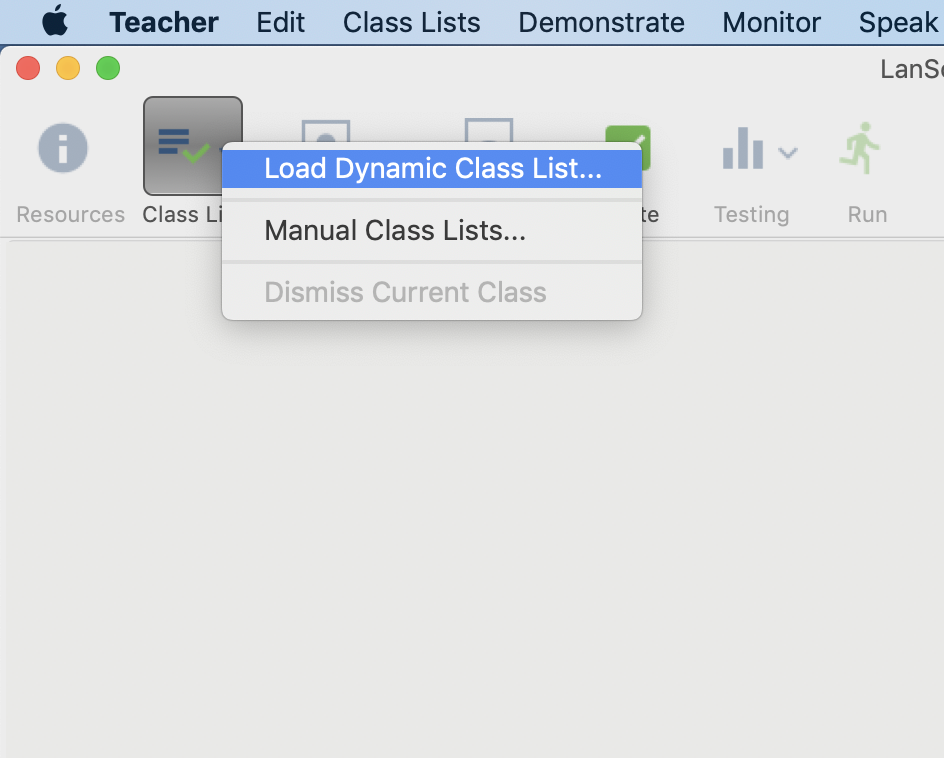
3. If this is your first time opening this application you will see the following screen:
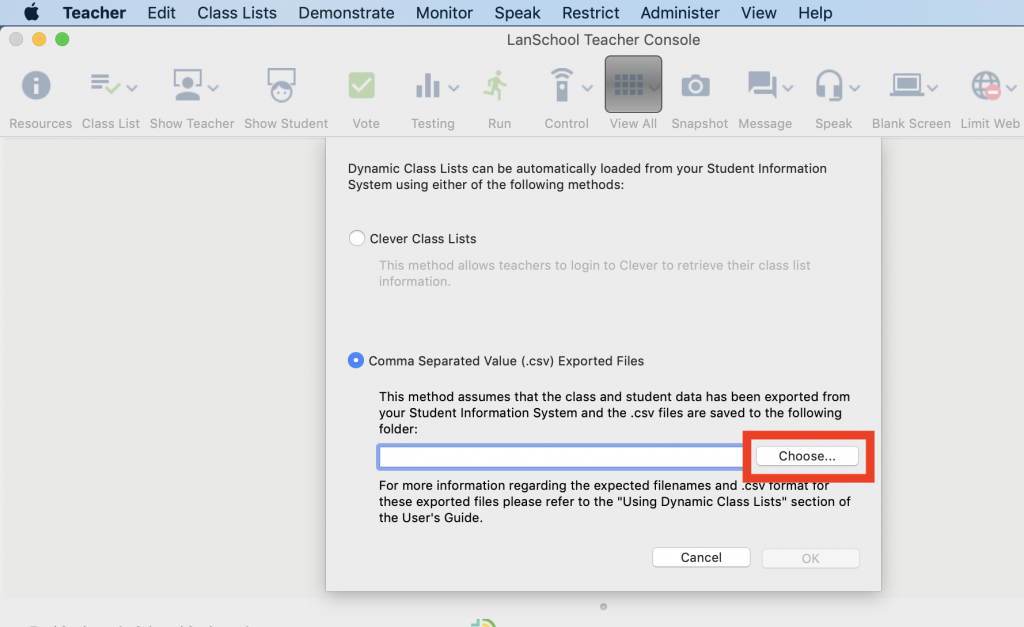
4. Select Choose. It will open up to the Documents folder. From there select the folder called LANSchool Files, and then click open
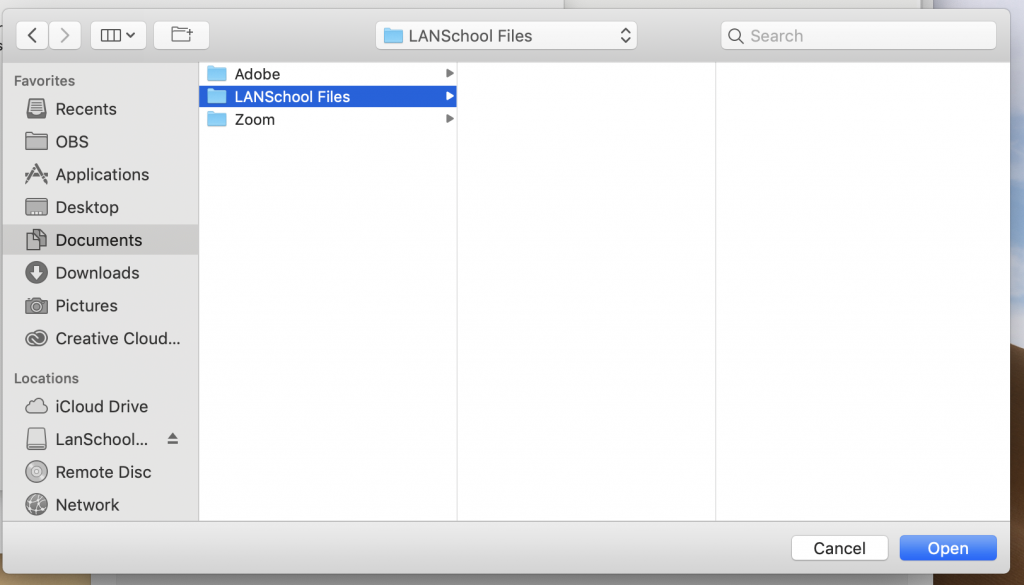
5. Choose the class that you currently want to administer and then click next
6. Your students should now show up. If a student does not show up send them to IT to get the problem resolved. It is part of the student’s readiness for class to have LANSchool operating normally.
**Note** Student screens will not show up properly while they are MAP testing with the app, this is because of the way that the app goes full screen and is normal.