If your Mailbox is full, here are a few tips/tricks to help you minimize the amount of time it takes you to fix the problem:
Trick #1
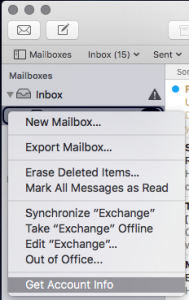
Alot of times part of the problem is that you don’t know how full your mailbox is until it is already full if you are using Mac Mail as your email client there is an easy way to check this. Open mail and right click on your school mailbox (It’s probably called Exchange). Choose Get Account Info this will list out the folders in the email server and how much data you have in each folder. Each person with LDi Gets 2GB:
Trick #2
- Log into mail.ldichina.com
- Choose Filter and then Attachments
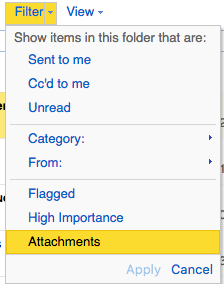
- This will show all the emails you have received that have attachments on them. These are the emails that use the majority of your inbox space. You can have thousands of emails that are only text, but several hundred emails with large attachments can fill your inbox up quickly.
Trick #3
Check your sent items folder often times if you are sending alot of emails with attachments, your sent folder can be a big contributor to filling up your inbox (Note: If your sent items is full that means you are contributing to filling up other people mailboxes. Try to limit the number of emails you send with big attachments)