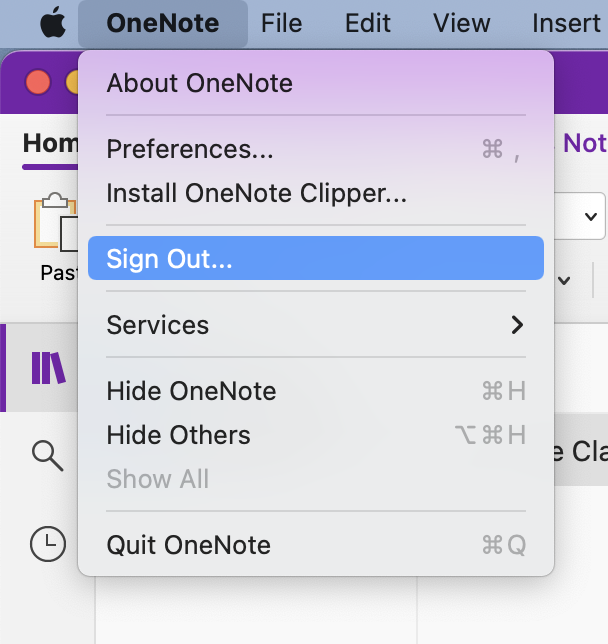
To Get OneNote and Teams working correctly again you will need to sign out of both apps and sign back into them again. This must be done for ALL students even if you think your OneNote/Teams is working correctly. Open the OneNote app on your computer, and go to the “OneNote” Menu and choose sign out:
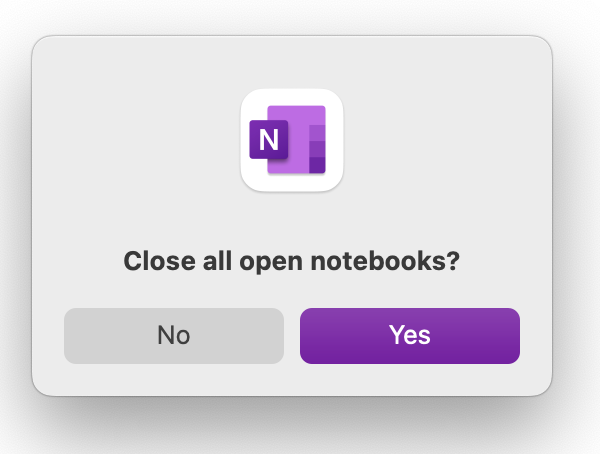
When prompted click sign out, and then when prompted choose yes to “Close All open Notebooks”:
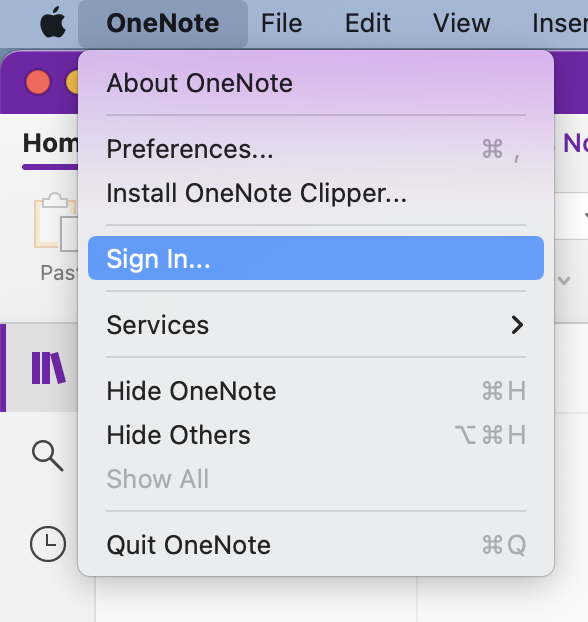
After that choose the OneNote menu again and click Sign in:
Sign in using firstname.lastname@students.tiseagles.com obviously replacing firstname.lastname with your own first and last names. After logging in you can go to file “Open Notebook” to reopen any notebooks that were closed in logging out.
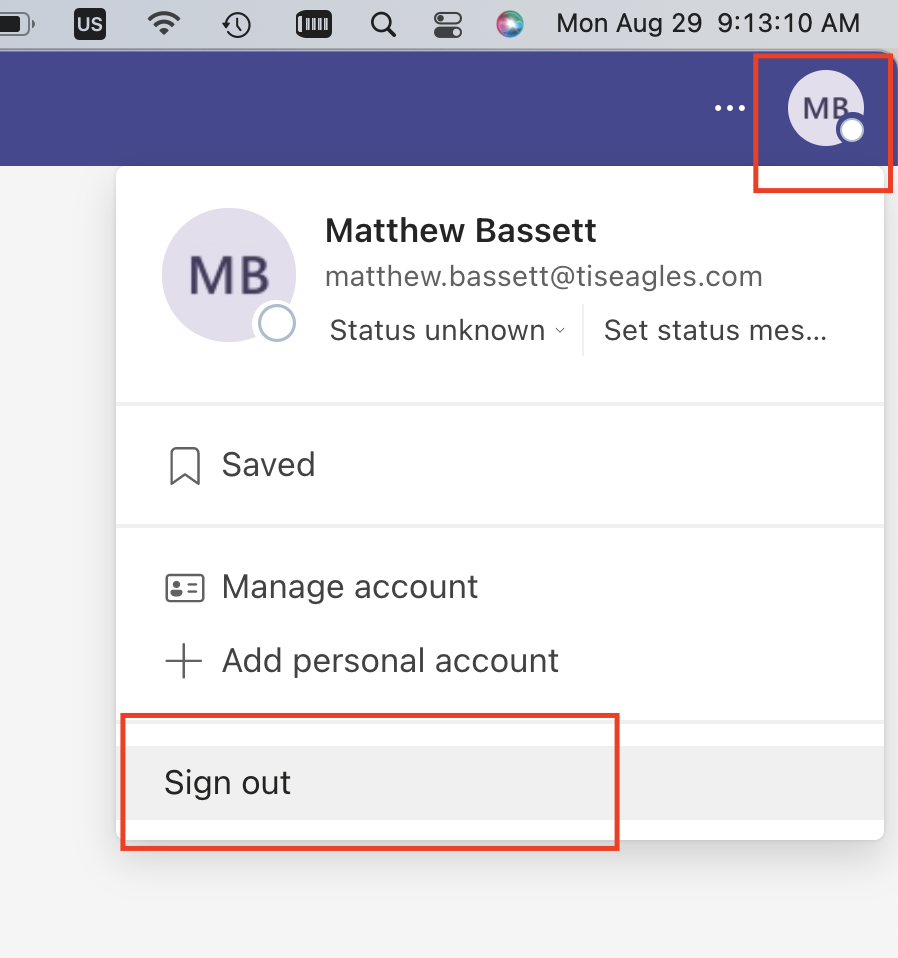
After that open the Microsoft Teams app on your computer. click on the icon with your name in the top right and click Sign Out:
After that you should be prompted to sign back in. Regardless of what accounts show up in the list choose “Use a different account or sign up”:
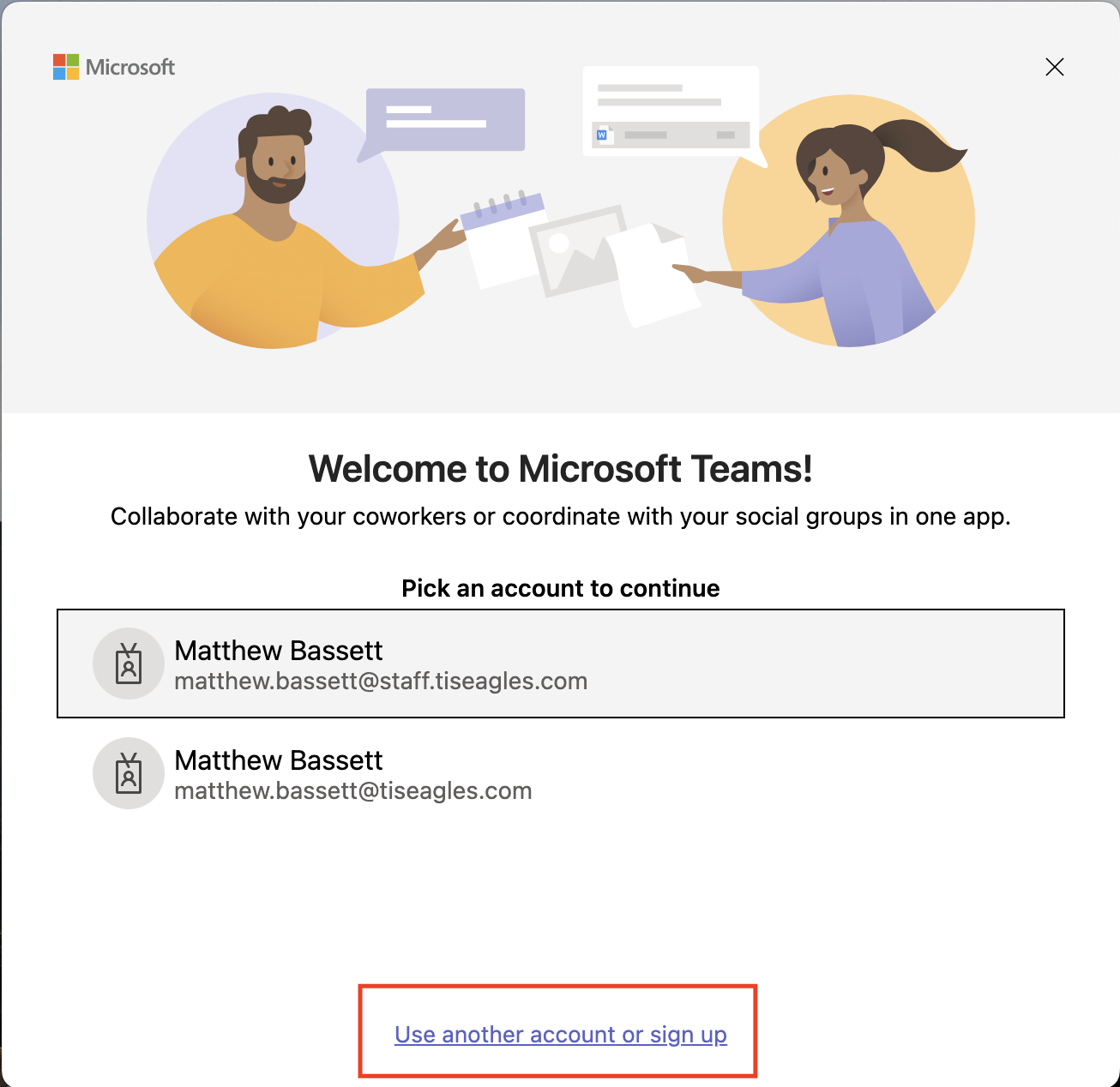
Login the same way as above.