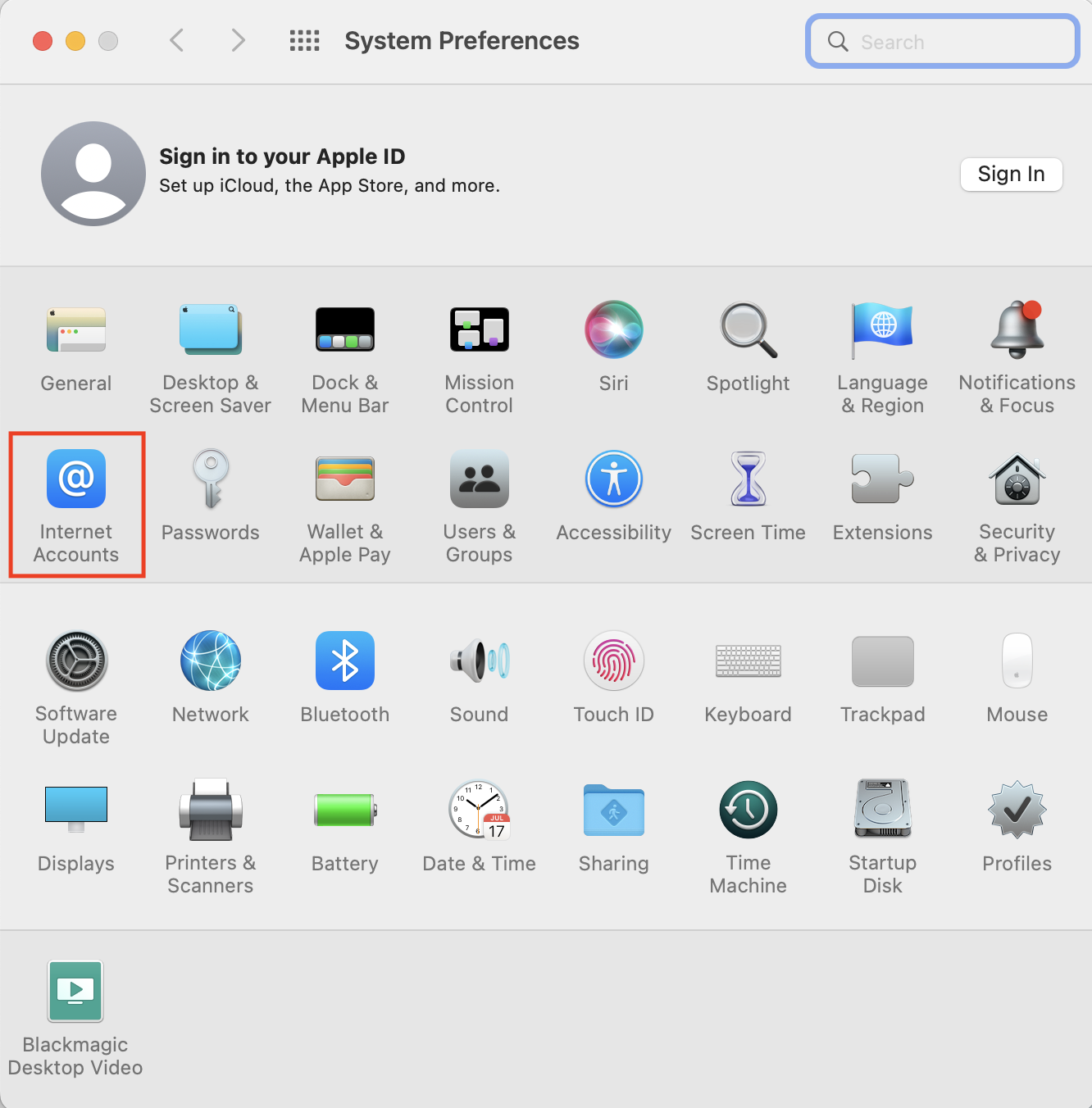
To remove the account, open System Preferences

Click on Internet Accounts:
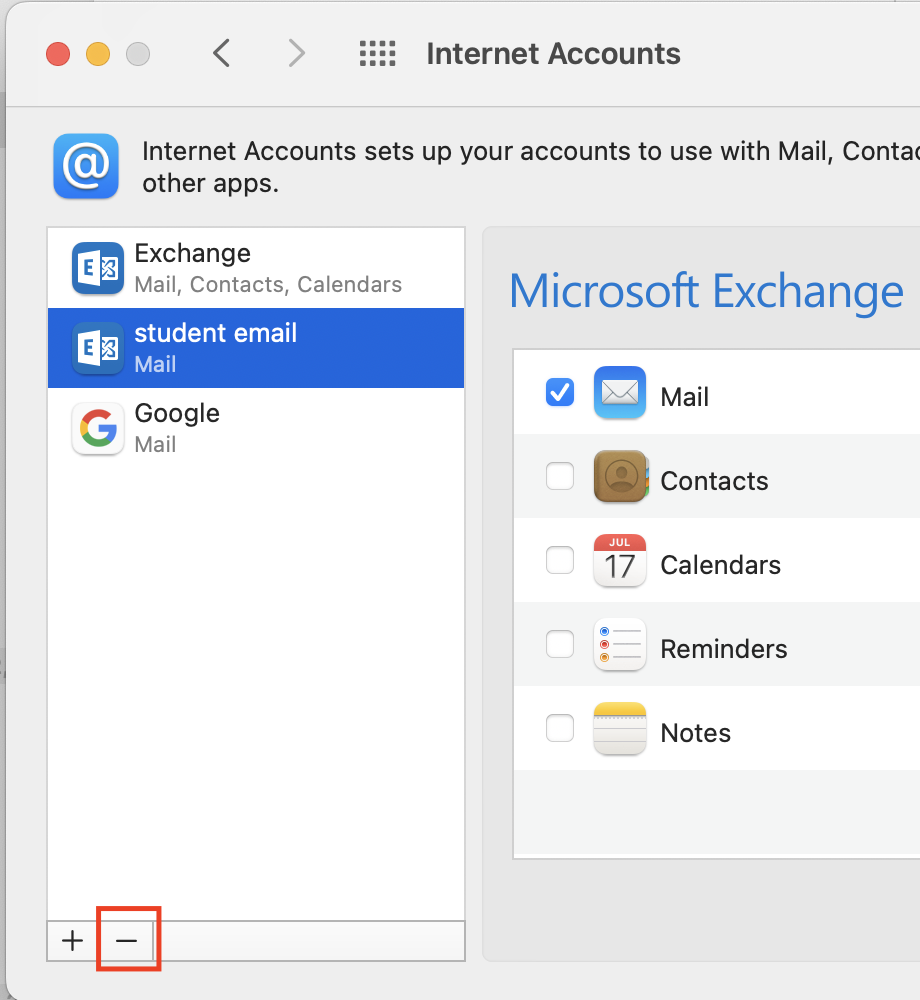
Then in the left list find your student email account and click the ‘-‘ symbol at the bottom:
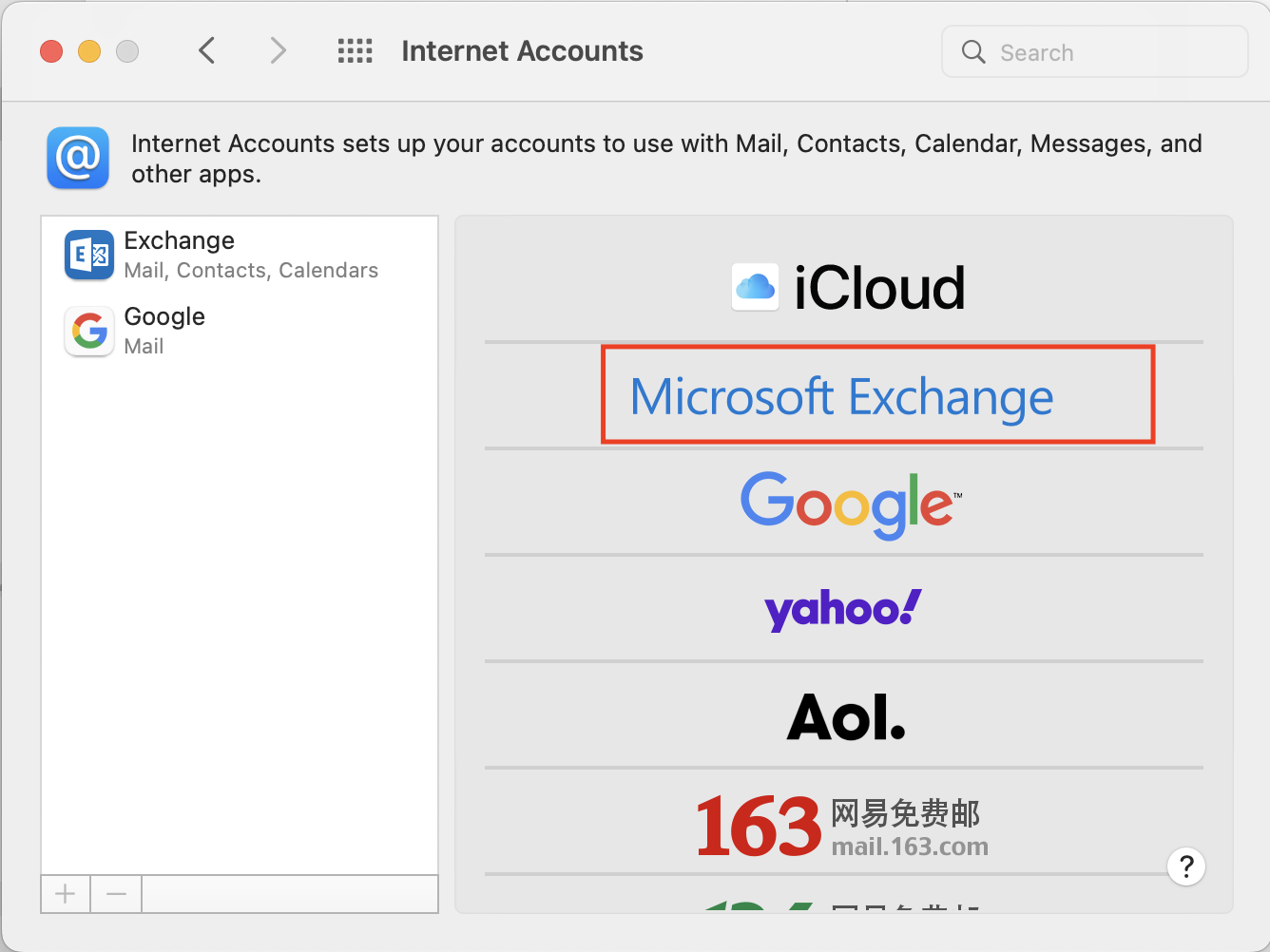
Confirm the removal of the account, and then click the ‘+’ button to add the account back and choose Microsoft Exchange:
Enter in your First and Last name into the Name field, and then firstname.lastname@students.tiseagles.com in the email field, obviously replacing with your name:
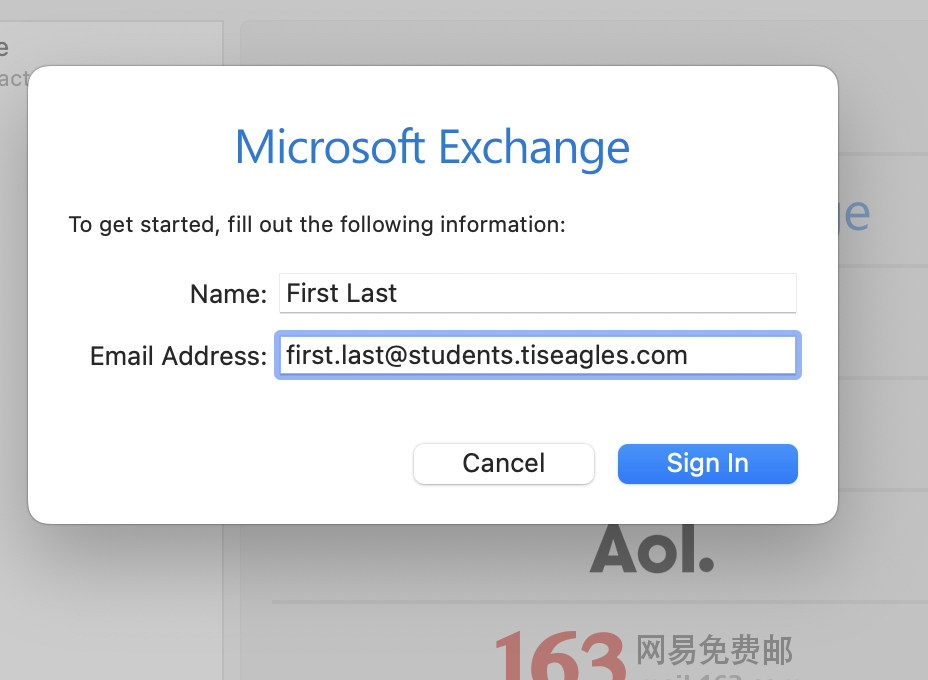
Click Sign In:
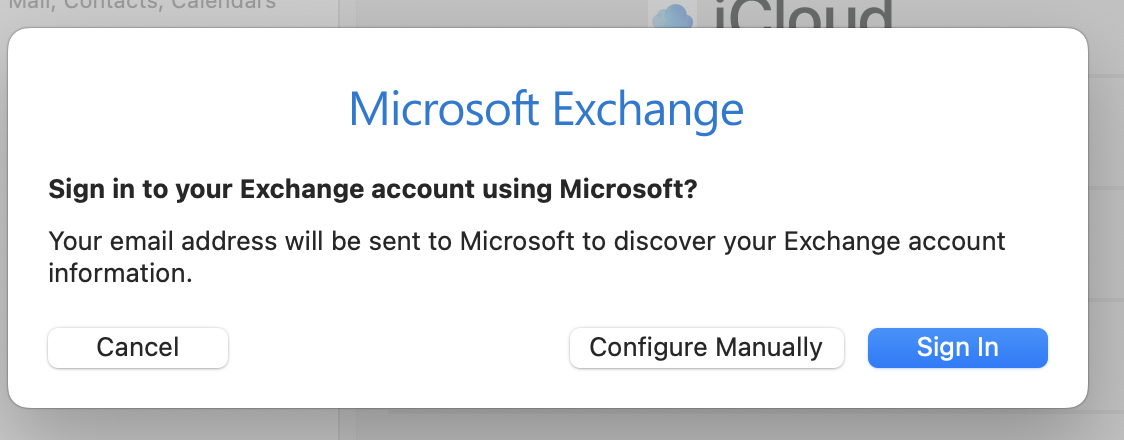
Enter your password

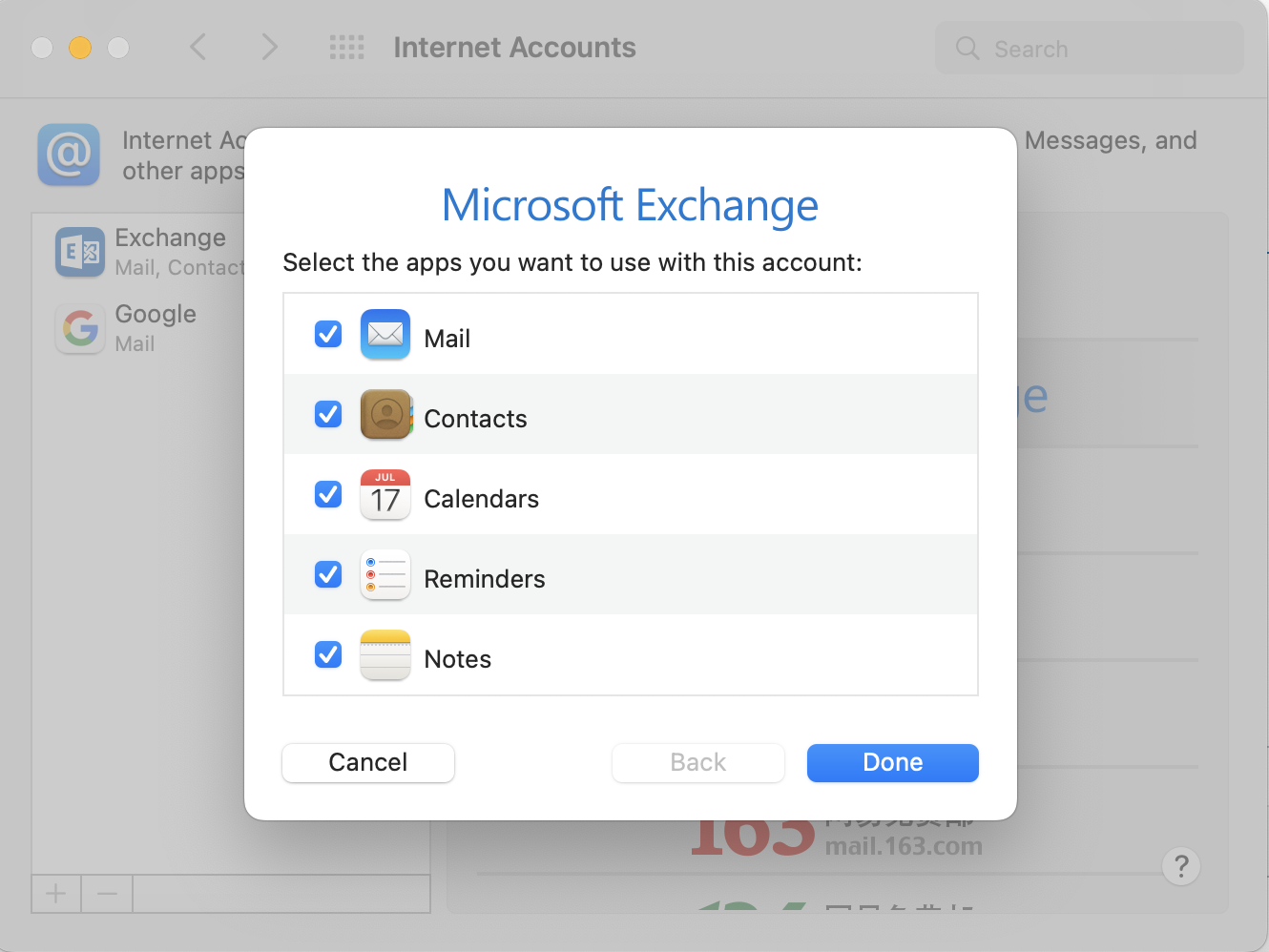
Click Done, after this email should start to come into the Maill app: