To install Adobe Creative Cloud applications open up the Filewave Kiosk by clicking on the red flag icon:

After the kiosk opens up search for Adobe:
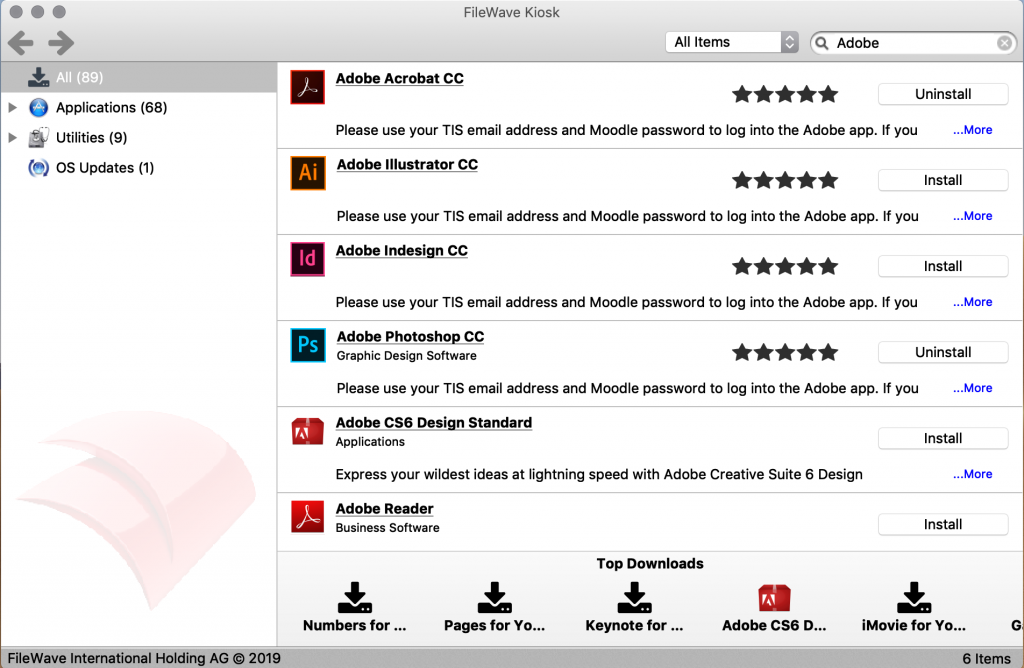
Click install on any of the Adobe CC applications you would like to install and wait for the applications to download and activate. After the application downloads launch it, and then log into the application using your school email address and your Moodle password.
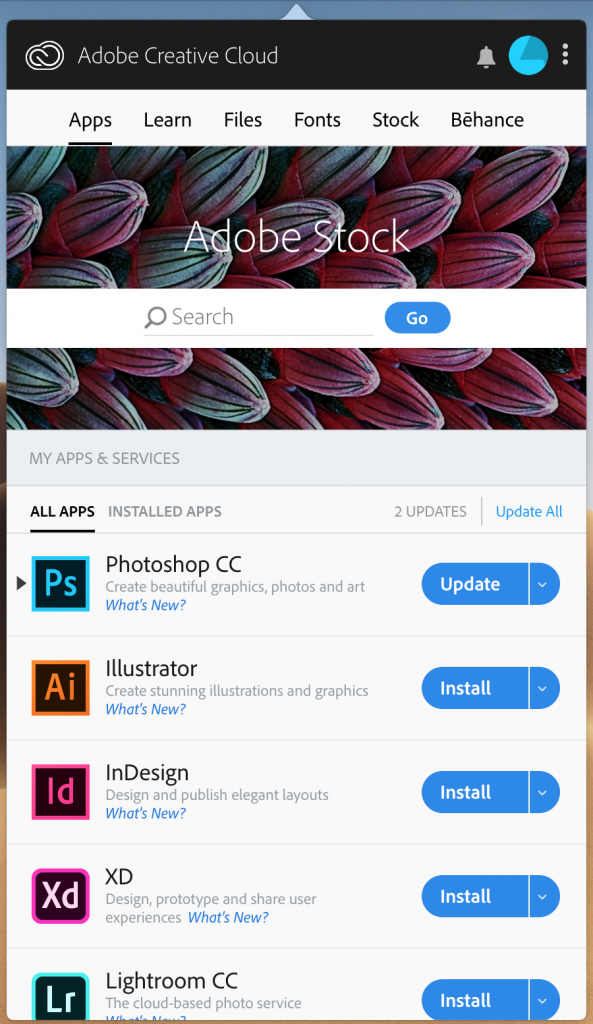
There are also further Adobe applications that you may want to install click on the Adobe Creative Cloud application from the application bar:

Then click on the apps tab and scroll through the apps and choose install on any other apps you would like to install:
If you have any issues with this process, please stop by the IT office and we will be happy to help you.