In order to better facilitate technology use in the classroom IT provides a software called LANSchool to monitor students laptop use. See Installing LANSchool if you need assistance installing LANSchool.
Each Semester after classes have been loaded in PowerSchool we export a list of students and push it out to all of the Staff Computers in the school. In order to load these lists launch the Teacher Application and click on the following: Administer –> One to One –> Load Dynamic Class List…
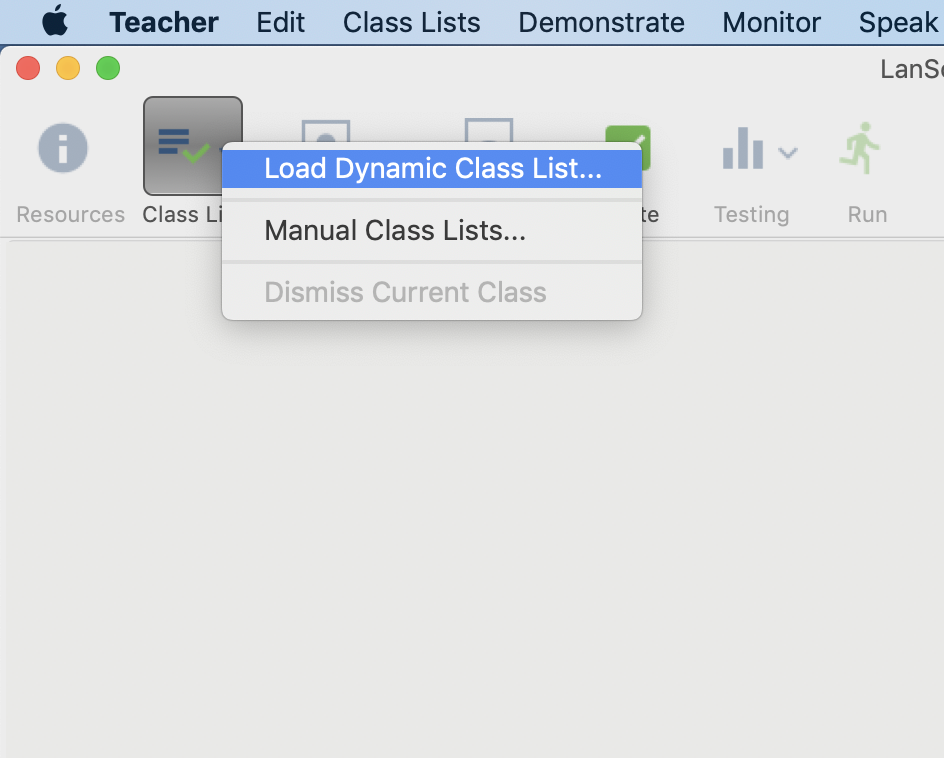
This will pull up a menu with all classes that you are listed as the primary teacher for in PowerSchool. Choose the class you are currently monitoring and click Load
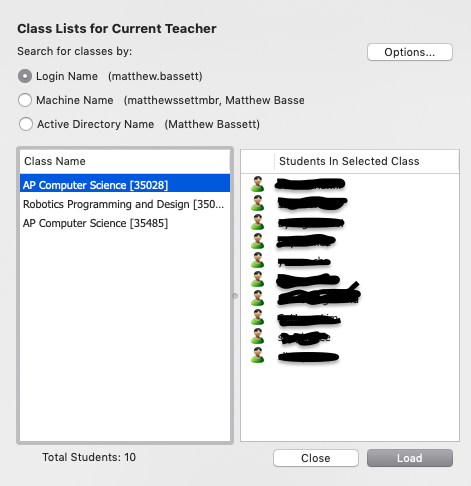
This will pull up a screen showing the students in your class. Choose the View All button to view your students screens

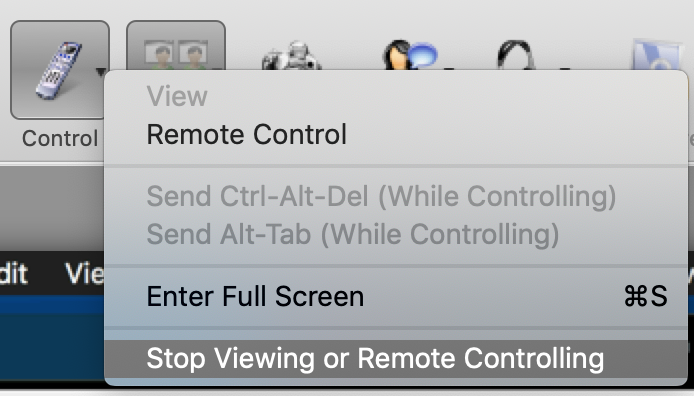
If you double click on a specific students screen from the panel it will take you into the larger view screen to get out of the screen and back to the whole class view click the small arrow on the remote button and choose Stop Viewing or Remote Controlling. Be careful, because the Control button also allows for you to remote control a students screen.
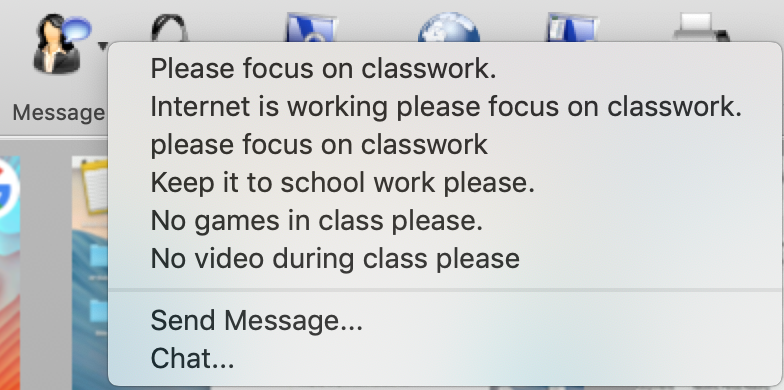
Another helpful feature of LANSchool is the ability to send messages to students to help keep them on topic. When you notice a student straying from topic send them a message by clicking on the Message button. If you click the small arrow on this button it will also suggest some previous messages that you have sent to students so you don’t have to retype the same thing. You can also choose Chat… if you would like the student to be able to respond back to you.
These are the basic features of LANSchool that you will need for classroom monitoring. As you will see LANSchool has a large feature set, however it is not always a logical or clear interface to use. Please be careful which buttons you click if you are unsure of what they do. If you have further questions feel free to send an email to helpdesk@tiseagles.com to ask.